Article
Best Password Managers in 2026 - Secure Your Digital Life
Stop reusing passwords and protect your accounts with the best password managers. Our experts tested security, features, and ease of use to find the top solutions.
in 2026, the average person manages over 100 online accounts, making password reuse a dangerous but common practice. A password manager is essential for generating, storing, and autofilling strong, unique passwords for every account.
Our team tested the leading password managers, evaluating security architecture, encryption methods, breach history, feature sets, and real-world usability across multiple platforms and devices.
Quick Comparison
| Password Manager | Best For | Price | Rating |
|---|---|---|---|
| 1. 1Password | Best Overall | $2.99/month | ★4.9/5 |
| 2. Bitwarden | Best Free Option | $10/year | ★4.8/5 |
| 3. Dashlane | Best for Security Features | $4.99/month | ★4.7/5 |
| 4. NordPass | Best for Privacy | $1.49/month | ★4.6/5 |
| 5. Keeper Security | Best for Storage | $2.92/month | ★4.6/5 |
| 6. LastPass | Best for Emergency Access | $3.00/month | ★4.3/5 |
Our Top Picks in Detail
1Password
1Password stands out as the best overall password manager with its intuitive design, robust security, and unique features like Travel Mode that protects sensitive data when crossing borders. With no security breaches in its history and excellent 24/7 support, it's ideal for individuals, families, and businesses who want the best combination of security and usability.
Key Features
- ●Travel Mode protection
- ●Watchtower breach alerts
- ●Advanced two-factor authentication
- ●Secure document storage
- ●Password sharing
- ●Emergency access
Pros
- ✓Exceptional ease of use
- ✓Strong security features
- ✓Polished interface design
- ✓24/7 customer support
- ✓No known security breaches
- ✓Travel Mode for border crossings
Cons
- ✗No free tier available
- ✗Slightly higher price
- ✗No biometric unlock on all platforms
Bitwarden
Bitwarden is the best free password manager, offering unlimited passwords, devices, and vault items at no cost. Its open-source nature provides transparency and trust, while the premium plan at just $10/year adds advanced features like Access Intelligence to detect credential risks and AI-driven phishing attacks. Perfect for budget-conscious users and privacy advocates.
Key Features
- ●Open-source code
- ●Unlimited passwords on free plan
- ●Self-hosting option
- ●Access Intelligence (2026)
- ●Two-factor authentication
- ●Secure password sharing
Pros
- ✓Excellent free tier
- ✓Open-source transparency
- ✓Very affordable premium ($10/year)
- ✓Self-hosting available
- ✓Strong security audits
- ✓Cross-platform support
Cons
- ✗Interface less polished than competitors
- ✗Fewer premium features
- ✗Learning curve for advanced features

Dashlane
Dashlane stands out with its all-in-one security approach, including a built-in VPN and robust dark web monitoring that actively scans for compromised credentials. The password health dashboard and auto-changer make it easy to maintain strong security hygiene. While pricier than alternatives, the comprehensive security features justify the cost for security-conscious users.
Key Features
- ●Built-in VPN included
- ●Dark web monitoring
- ●Password health score
- ●Auto password changer
- ●Secure file storage (1GB)
- ●Identity theft insurance
Pros
- ✓VPN included at no extra cost
- ✓Comprehensive dark web monitoring
- ✓Excellent password health analysis
- ✓User-friendly interface
- ✓Strong breach alerts
Cons
- ✗Higher price than competitors
- ✗No free tier (trial only)
- ✗Limited customer support channels
NordPass
NordPass delivers exceptional value with premium security at budget prices, starting at just $1.49/month. Using advanced XChaCha20 encryption and backed by the trusted Nord Security team, it provides strong zero-knowledge protection with features like Data Breach Monitor and Email Masking. The free tier offers unlimited passwords, making it accessible to everyone.
Key Features
- ●XChaCha20 encryption
- ●Zero-knowledge architecture
- ●Data Breach Monitor
- ●Email Masking
- ●Emergency Access
- ●Secure sharing
Pros
- ✓Strong XChaCha20 encryption
- ✓Very affordable pricing
- ✓From trusted Nord Security
- ✓Independent security audits
- ✓Clean, intuitive interface
- ✓Good free tier
Cons
- ✗Limited storage (3GB)
- ✗Fewer features than premium competitors
- ✗Relatively new to market
Keeper Security
Keeper Security excels with 100GB of secure storage—far more than competitors—making it perfect for users who need to store documents, files, and photos alongside passwords. The platform includes unique features like encrypted messaging and allows five emergency contacts. While slightly pricier, the extensive storage and enterprise-grade security make it valuable for power users.
Key Features
- ●100GB secure storage
- ●BreachWatch monitoring
- ●Encrypted messaging
- ●Emergency access (5 people)
- ●FIDO2 authentication
- ●Secure file sharing
Pros
- ✓Massive 100GB storage
- ✓Encrypted chat included
- ✓Strong emergency access options
- ✓Enterprise-grade security
- ✓Direct password manager imports
Cons
- ✗Higher base price
- ✗Extra cost for some features
- ✗Complex pricing structure
LastPass
LastPass offers excellent emergency access features that let you designate trusted contacts to access your vault after a specified time period. While it remains popular for its user-friendly interface and comprehensive features, the 2022 security breach where vault data was stolen has raised serious concerns. Consider alternatives like 1Password or Bitwarden if security breaches are a dealbreaker.
Key Features
- ●Advanced emergency access
- ●Password sharing
- ●Multi-factor authentication
- ●Security dashboard
- ●Dark web monitoring
- ●1GB encrypted storage
Pros
- ✓Robust emergency access features
- ✓User-friendly interface
- ✓Unlimited device support
- ✓Comprehensive autofill
- ✓Family sharing options
Cons
- ✗Multiple past security breaches
- ✗Free plan very limited
- ✗Trust concerns after 2022 breach
How We Test Password Managers
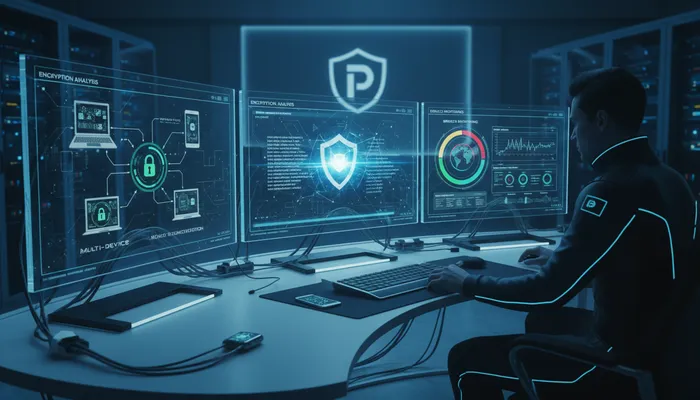
Our password manager testing methodology is comprehensive and security-focused:
Security Analysis
We examine the foundation of each password manager:
- Encryption standards: AES-256, XChaCha20, and zero-knowledge architecture
- Breach history: Past security incidents and company response
- Independent audits: Third-party security assessments and transparency
- Two-factor authentication: Support for FIDO2, biometrics, and authenticator apps
- Master password recovery: Security vs. convenience tradeoffs
Feature Evaluation
We test core and advanced features:
- Password generator: Strength and customization options
- Autofill accuracy: Login forms, payment cards, and addresses
- Password sharing: Security and ease of sharing with family or team
- Dark web monitoring: Breach alerts and credential scanning
- Emergency access: Trusted contact setup and access procedures
- Import/export: Migration from other password managers
Platform Testing
We verify cross-platform functionality:
- Desktop apps (Windows, Mac, Linux)
- Mobile apps (iOS, Android)
- Browser extensions (Chrome, Firefox, Safari, Edge)
- Synchronization speed and reliability
- Offline access capabilities
Usability Assessment
We evaluate the user experience:
- Onboarding and setup process
- Interface design and navigation
- Password capture and autofill reliability
- Customer support quality and availability
- Family and team sharing workflows
Password Manager Security Explained
Zero-Knowledge Architecture
All reputable password managers use zero-knowledge encryption, meaning:
- Your master password never leaves your device
- The company cannot access your vault data
- Even if the company is breached, your passwords remain encrypted
- Only you can decrypt your vault with your master password
Encryption Standards
Modern password managers use military-grade encryption:
- AES-256: Industry standard, used by governments and banks
- XChaCha20: Newer standard used by NordPass, highly secure
- End-to-end encryption: Data encrypted on your device before sync
- PBKDF2/Argon2: Key derivation to strengthen master password
Authentication Methods
Strong password managers support multiple authentication methods:
- Master password: Your primary vault key
- Two-factor authentication: TOTP, SMS, or authenticator apps
- Biometric unlock: Fingerprint or face recognition
- FIDO2/WebAuthn: Hardware security keys for maximum protection
Password Security Best Practices
Creating a Strong Master Password
Your master password is the key to everything:
- Use at least 16 characters (longer is better)
- Combine random words into a memorable passphrase
- Avoid personal information or common patterns
- Never reuse your master password elsewhere
- Consider using a passphrase generator for randomness
Managing Your Passwords
Make the most of your password manager:
- Generate unique passwords for every account
- Use maximum length allowed by each site (usually 64+ characters)
- Enable two-factor authentication wherever possible
- Regularly review and update weak or old passwords
- Store security question answers as random passwords
- Keep secure notes for backup codes and recovery keys
Family and Team Sharing
Safely share passwords with others:
- Use built-in sharing features, never send passwords via email/text
- Share only necessary credentials
- Remove shared access when no longer needed
- Use family/team plans for built-in sharing security
- Set up emergency access for trusted family members
Frequently Asked Questions
Are password managers safe?
Yes, password managers are significantly safer than reusing passwords or writing them down. They use military-grade encryption (AES-256) and zero-knowledge architecture, meaning even the company cannot access your passwords. While no system is 100% secure, password managers dramatically reduce your risk of being hacked.
What if I forget my master password?
Most password managers cannot recover your master password due to zero-knowledge encryption—this is a security feature, not a bug. Some offer account recovery through emergency contacts or backup methods, but these may compromise security. Always store your master password securely (written down in a safe place, memorized phrase, etc.).
Should I store all my passwords in one place?
Yes, despite seeming counterintuitive. The security benefits of using unique, complex passwords for every account far outweigh the risk of having them in one encrypted vault. The alternative—reusing passwords or using weak passwords—is far more dangerous. Just ensure you use a strong master password and enable two-factor authentication.
Can password managers be hacked?
While theoretically possible, properly designed password managers with zero-knowledge encryption are extremely difficult to hack. Even if a company’s servers are breached (as happened with LastPass in 2022), your passwords remain encrypted and effectively unreadable without your master password. Choose managers with strong security track records like 1Password or Bitwarden.
Do I need different passwords for every account?
Absolutely. Password reuse is one of the biggest security risks. When one site is breached, hackers try those credentials everywhere (called “credential stuffing”). A password manager makes it easy to generate and store unique passwords for every account, protecting you from cascading breaches.
Is the free version of Bitwarden as secure as paid options?
Yes, Bitwarden’s free tier uses the same strong encryption and security architecture as premium password managers. The difference is in features (like advanced 2FA, encrypted file storage, priority support) rather than core security. Bitwarden’s open-source code has been independently audited, making it trustworthy even on the free plan.
Can I use a password manager on my phone?
Yes, all major password managers offer excellent mobile apps for iOS and Android. They integrate with your phone’s autofill system, making it easy to log into apps and websites. Many support biometric unlock (fingerprint or face recognition) for quick access while maintaining security.
How do I migrate from one password manager to another?
Most password managers support importing from competitors. Typically: 1) Export your passwords from your current manager (usually as a CSV file), 2) Import that file into your new password manager, 3) Verify all passwords transferred correctly, 4) Delete the export file securely. Many services like Keeper offer direct import tools for easier migration.
Should I use browser-built password managers like Chrome or Safari?
While better than nothing, browser-built password managers are less secure and feature-rich than dedicated solutions. They lack advanced features like dark web monitoring, secure sharing, emergency access, and cross-platform sync. For serious security, use a dedicated password manager that works across all browsers and devices.